为了在VS Code中调试代码,首先需要安装VS Code和MinGW,参考文章
Command line配合MinGW
接下来是具体设置:
1.打开cmd,cd至项目目录,键入
code .
,在VS Code中打开项目;
2.VS Code中使用快捷键Ctr+Shift+P,打开控制面板输入
Terminal > Configure Default Build Task
,选择
g++.exe build active file
, 会创建tasks.json文件,这个文件用于配置编译选项。

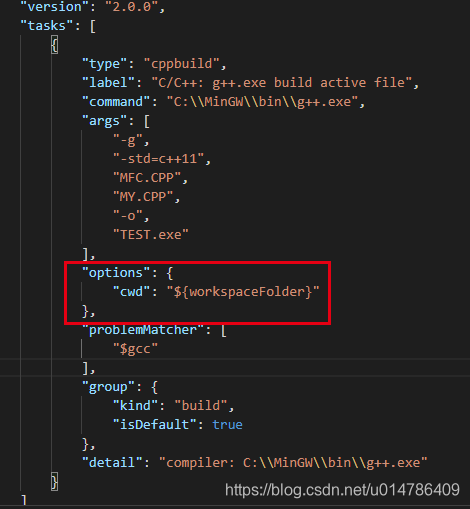
3.设置tasks.json内容如下:
"version"
:
"2.0.0"
,
"tasks"
:
[
"type"
:
"shell"
,
"label"
:
"C/C++: g++.exe build active file"
,
"command"
:
"C:\\MinGW\\bin\\g++.exe"
,
"args"
:
[
"-g"
,
"-std=c++11"
,
"MFC.CPP"
,
"MY.CPP"
,
"-o"
,
"TEST.exe"
"options"
:
{
"cwd"
:
"${workspaceFolder}"
"problemMatcher"
:
[
"$gcc"
"group"
:
{
"kind"
:
"build"
,
"isDefault"
:
true
保存编辑。
4.创建launch.json文件
在VS Code主窗口左侧Run选项(Ctr + Shift + D),选择Add Configuration,选择C++ (GDB/LLDB),接着选择 g++.exe build and debug active file.
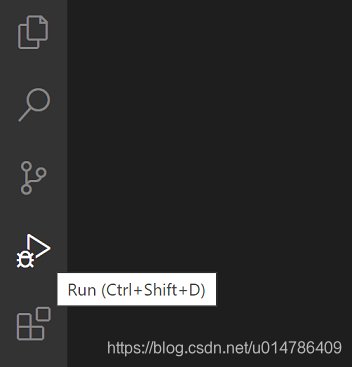
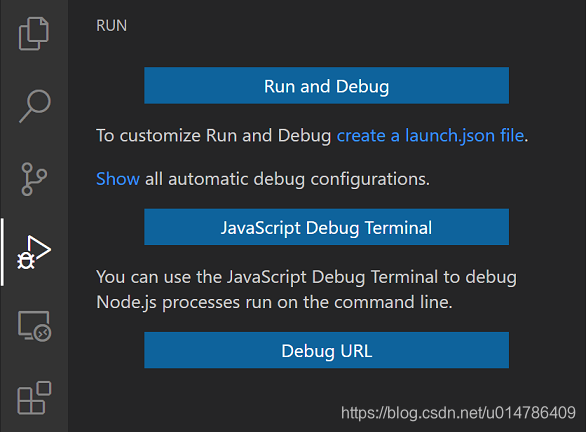
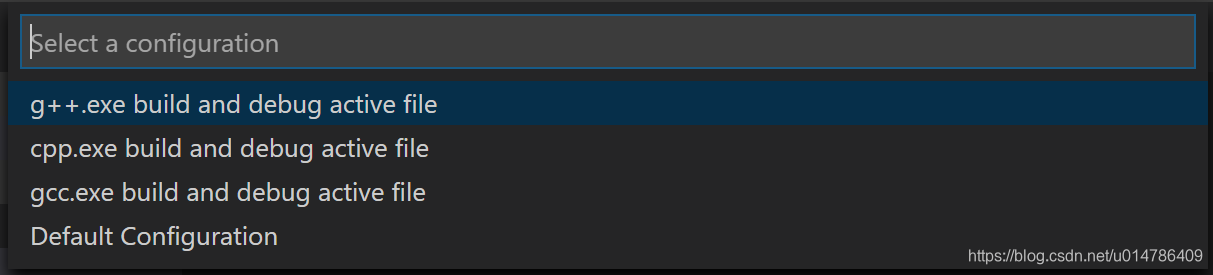
此时会创建launch.json文件,这个文件用于配置调试选项,配置如下:
"version"
:
"0.2.0"
,
"configurations"
:
[
"name"
:
"(gdb) Launch"
,
"type"
:
"cppdbg"
,
"request"
:
"launch"
,
"program"
:
"C:\\Users\\ITadmin\\Desktop\\Test\\MFC\\FRAME2.03\\TEST.exe"
,
"args"
:
[
]
,
"stopAtEntry"
:
false
,
"cwd"
:
"${workspaceFolder}"
,
"environment"
:
[
]
,
"externalConsole"
:
false
,
"MIMode"
:
"gdb"
,
"miDebuggerPath"
:
"C:\\MinGW\\bin\\gdb.exe"
,
"setupCommands"
:
[
"description"
:
"Enable pretty-printing for gdb"
,
"text"
:
"-enable-pretty-printing"
,
"ignoreFailures"
:
true
5.回到主程序 (main函数)文件,使用Ctr + Shift + B来编译代码:
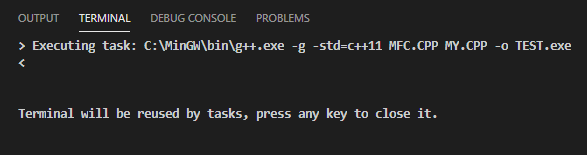
有时编译出错提示找不到源文件,这时要检查当前工作目录cwd是否是project目录。
无错误情况如图。按“+”键创建一个新的terminal。
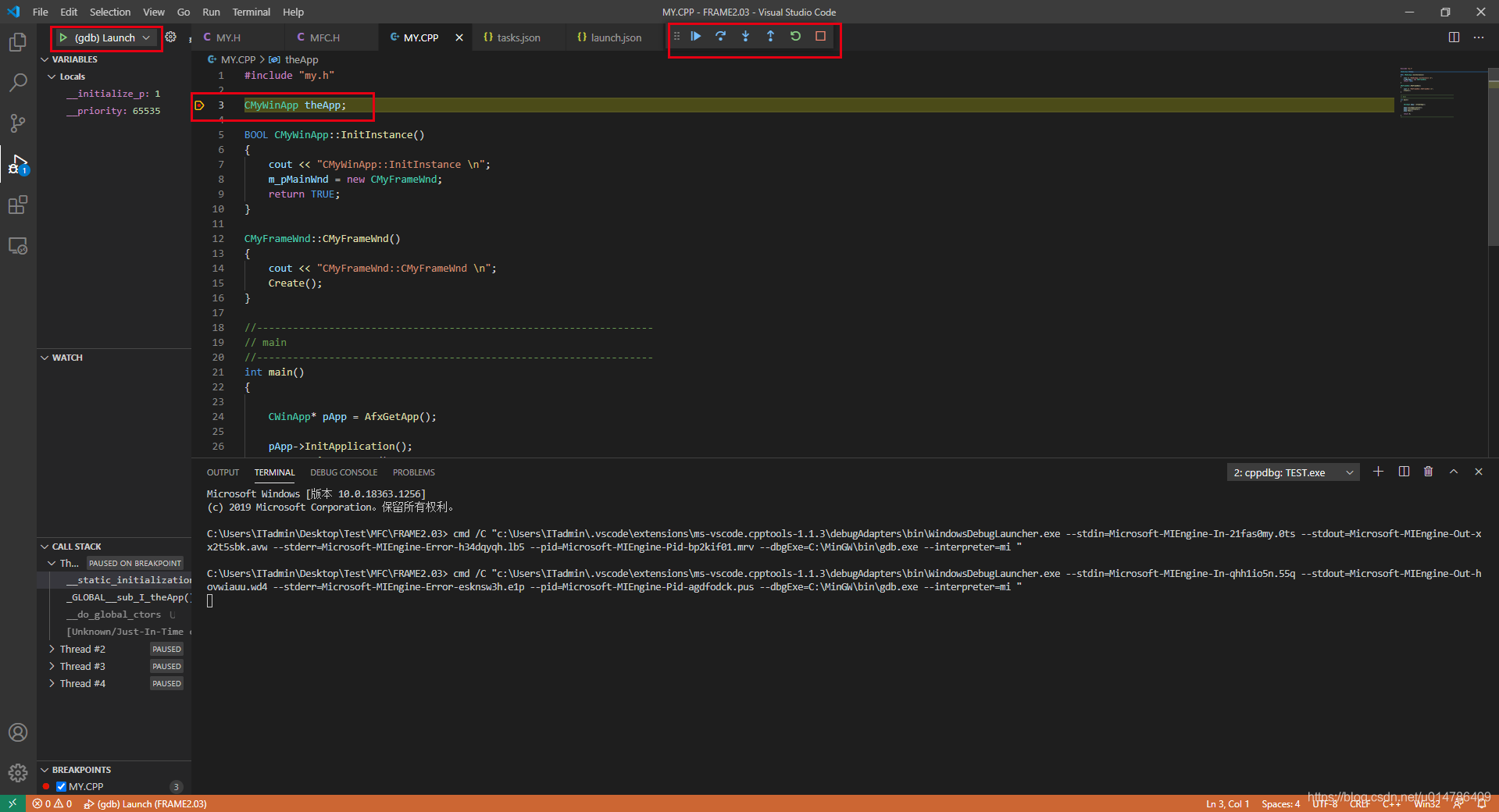
6.在程序中设置断点,点击Run,切换至调试模式,点击“(gdb) Launch" 开始调试。
7.配置自动补全功能
使用Ctr + Shift + P打开命令选板,选择
C/C++: Edit Configurations (UI)
创建c_cpp_properties.json文件,这个文件用于设置自动补全功能,配置如下
"configurations"
:
[
"name"
:
"GCC"
,
"includePath"
:
[
"${workspaceFolder}/**"
,
"C:\\MinGW\\include"
"defines"
:
[
"_DEBUG"
,
"UNICODE"
,
"_UNICODE"
"windowsSdkVersion"
:
"10.0.18362.0"
,
"compilerPath"
:
"C:\\MinGW\\bin\\g++.exe"
,
/
/
MinGW编译器路径
"cStandard"
:
"c11"
,
"cppStandard"
:
"c++11"
,
/
/
c
++
标准
"intelliSenseMode"
:
"gcc-x64"
/
/
将默认的
MSVC
mode改为gcc mode
"version"
:
4
参考文献:
Get Started with C++ and MinGW in Visual Studio Code
Debug C++ in Visual Studio Code
Configuring C/C++ debugging
为了在VS Code中调试代码,首先需要安装VS Code和MinGw,参考文章Command line配合MinGW接下来是具体设置:1.打开cmd,cd至项目目录,键入code .,在VS Code中打开项目;2.VS Code中使用快捷键Ctr+Shift+P,打开控制面板输入Terminal > Configure Default Build Task,选择g++.exe build active file:3.设置tasks.json内容如下:{ // See https
ffmpeg4.5 build
编译
版 win32 平台 适用vs
mingw
32
编译
器
里面包含dev 和shared 压缩包
dev
中
包含include 头文件和 lib文件 av
code
c.lib avdevice.lib avfilter.lib swscale.lib等文件
shared
中
包含dll文件 swscale-6.dll avuil-57.dll av
code
c-59.dll
Visual
Studio
Code
本身并不是一个
编译
器,它是一个轻量级的
代码
编辑器。如果您想要
编译
代码
,您需要安装相应的
编译
器或者集成开发环境(IDE),例如
Visual
Studio
、Eclipse等等。然后,您可以在
Visual
Studio
Code
中
打开相应的项目文件,
使用
编译
器或者IDE进行
编译
。如果您
使用
的是
C++
语言,您可以
使用
MinGW
或者GCC等
编译
器。如果您
使用
的是Java语言,您可以
使用
JDK和Eclipse等IDE进行
编译
。总之,
Visual
Studio
Code
本身并不提供
编译
功能,您需要安装相应的
编译
器或者IDE来进行
编译
。