[Wireless Router] How to set up WireGuard® server?
What is WireGuard®?
WireGuard® is an advanced and modern VPN protocol that is easy to configure, providing blazing-fast speed, a leaner protocol, and it's seen as more secure than IPsec with the state-of-the-art cryptography. The functionality of WireGuard® VPN somehow performs better than well-known OpenVPN.
Prepare
WireGuard® is only supported on the firmware version
later than
3.0.0.4.388.23000
. For Supported models, please refer to
https://asus.click/vpnfusionmodel
(You can find the support model list at the bottom of this page).
For instruction about how to update the firmware, please refer to the support article :
[Wireless] How to update the firmware of your router to the latest version ?
Please follow the steps below to set up your router:
1. Connect your computer to the router via wired or WiFi connection and enter
your router LAN IP
or router URL http://www.asusrouter.com to the WEB GUI.
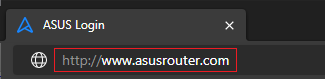
Note: Please refer to
How to enter the router setting page(Web GUI)
to learn more.
2. Key in your router's username and password to log in.
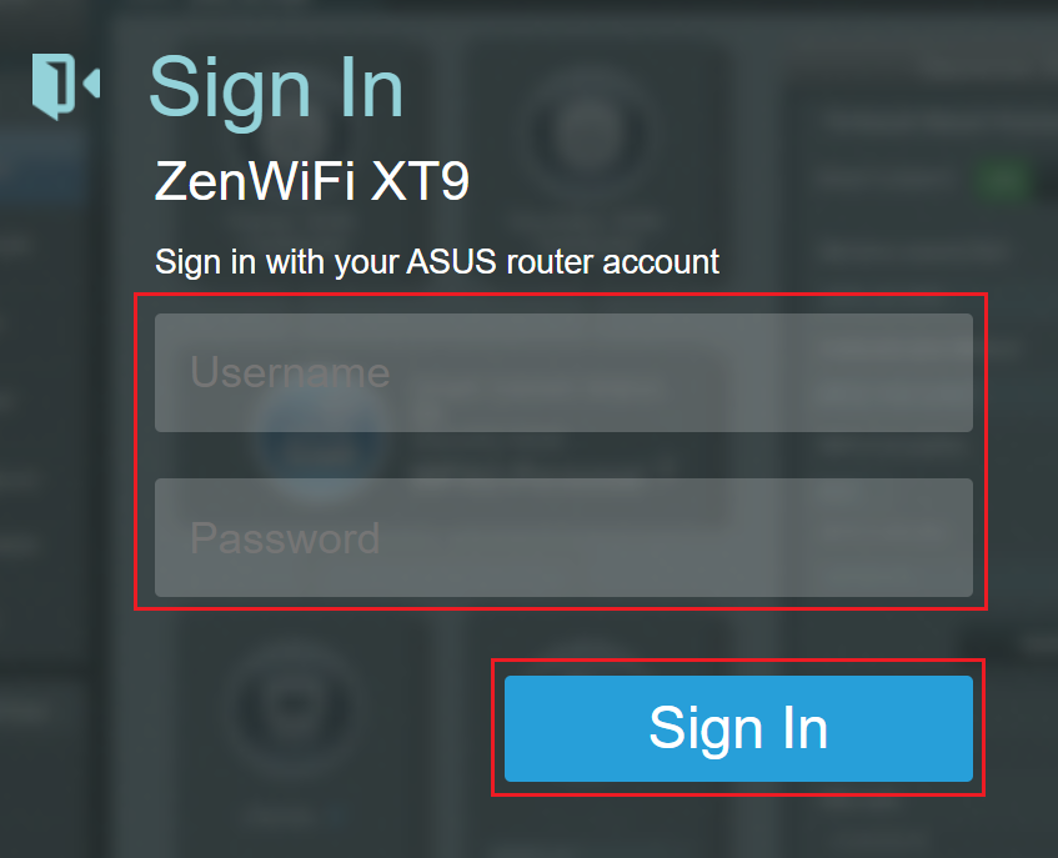
Note: If you forget the user name and/or password, please restore the router to the factory default status and setup.
Please refer to
[Wireless Router] How to reset the router to factory default setting?
for how to restore the router to default status.
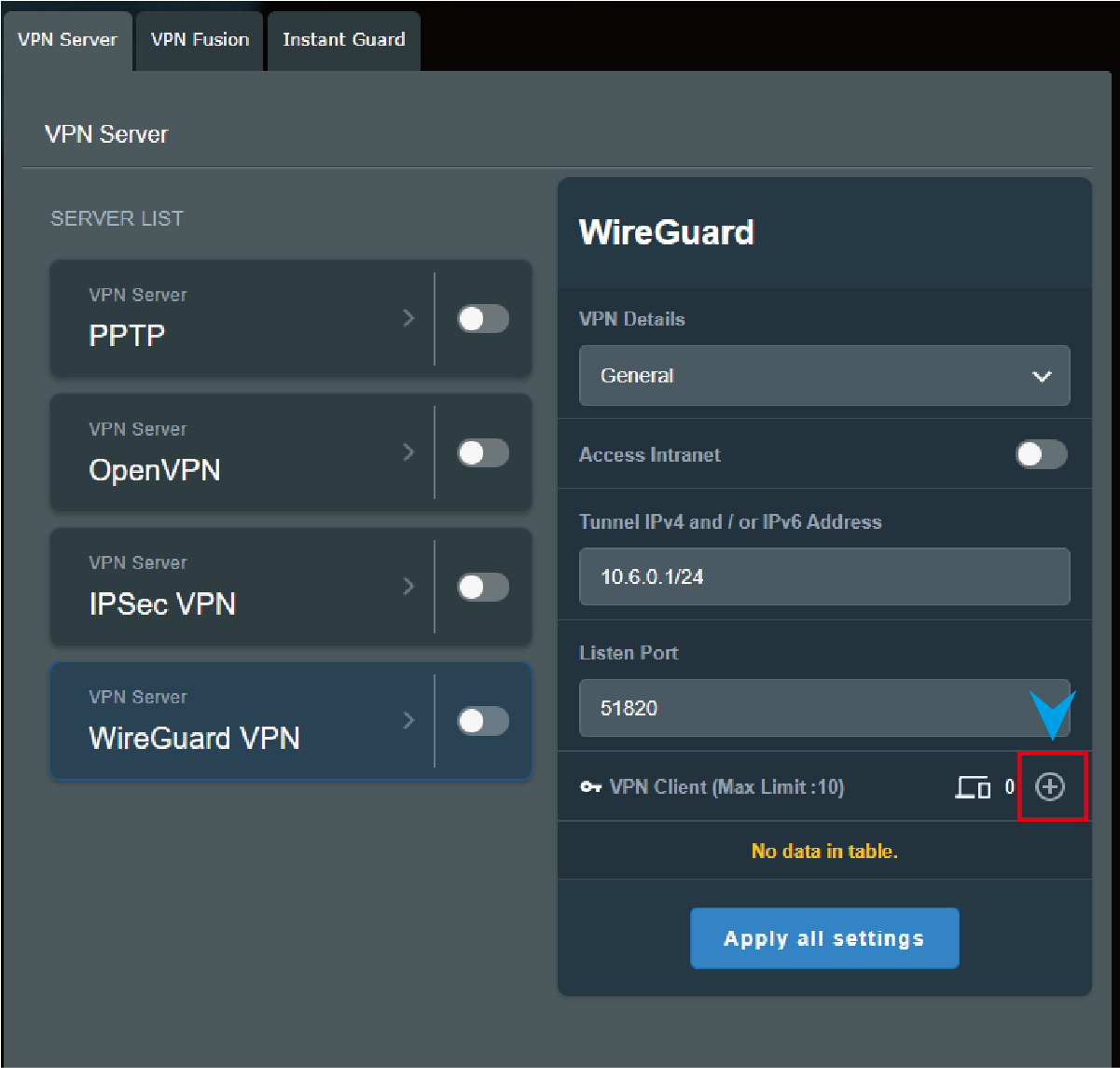
3. Go to [
VPN
] > [
VPN Server
] > [
WireGuard® VPN
] and click
 button.
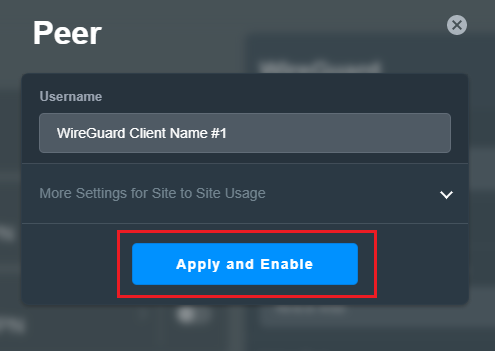
4. For general devices like laptops or phones, you can just click the
Apply
button.
If this profile needs to set for
site to site VPN connection
, please refer to
How to setup site to site VPN with WireGuard®
5. Click [
Apply all settings]
and enable the WireGuard® VPN.

6. Tap
 icon for more details and click
 .
.
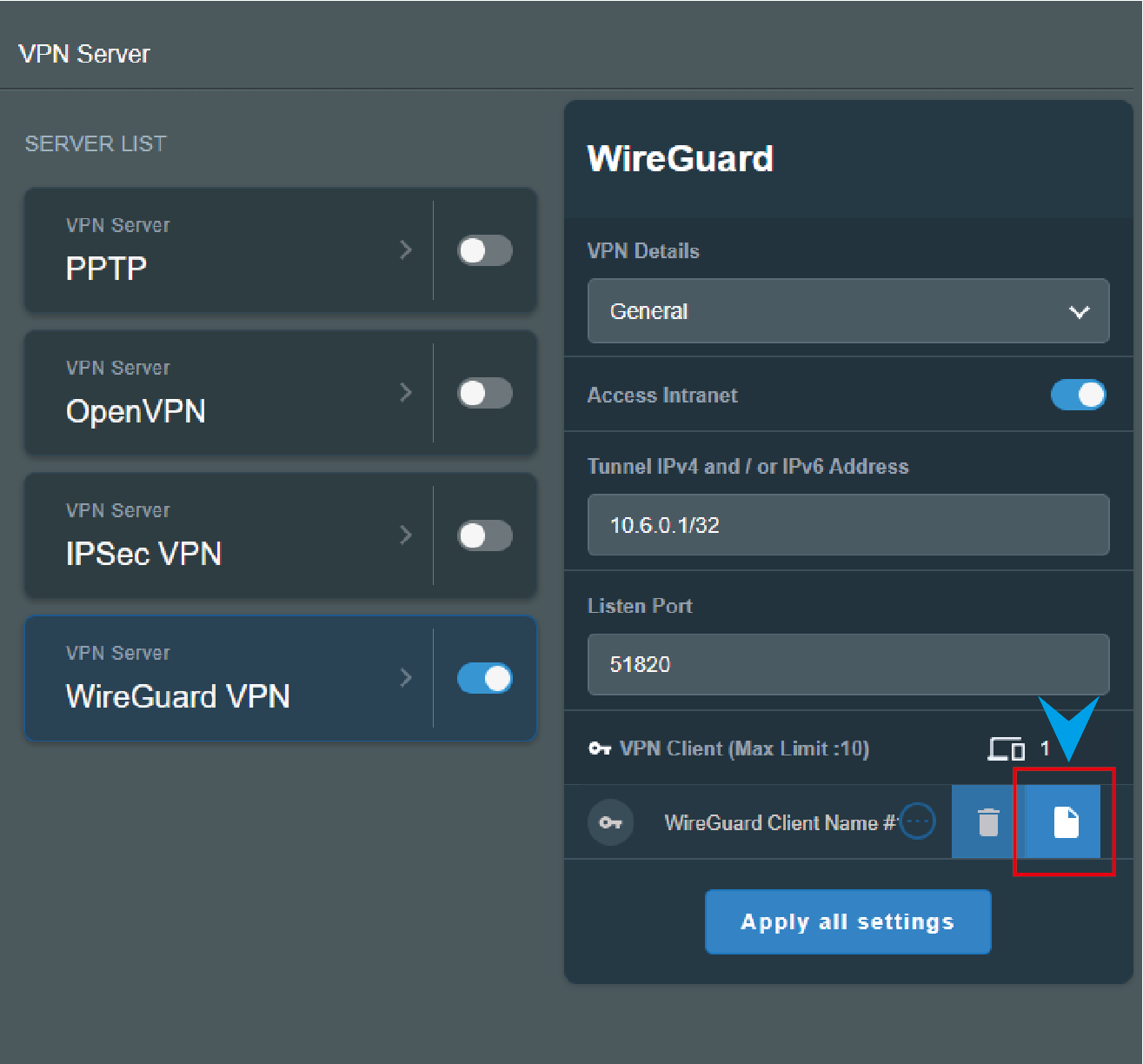
7. For phone connection, please download WireGuard® App from Google Play or Appe Store and you can scan the QR code in WireGuard® App to download the configuration file.
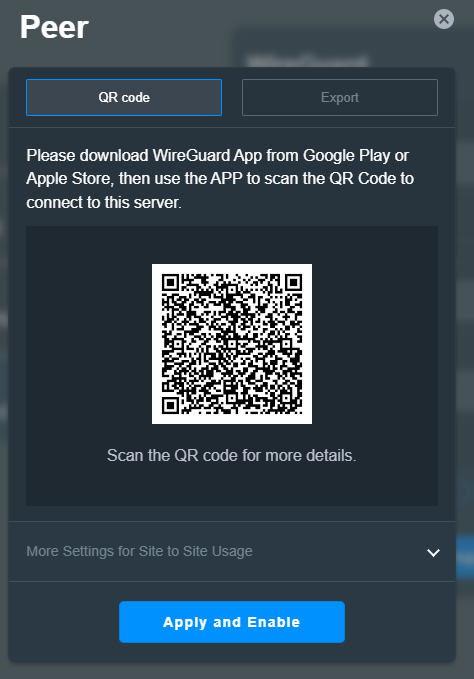
Notice:
For iOS users, you have to assign a specific DNS server to WireGuard® app before accessing the Internet through WireGuard® Server.
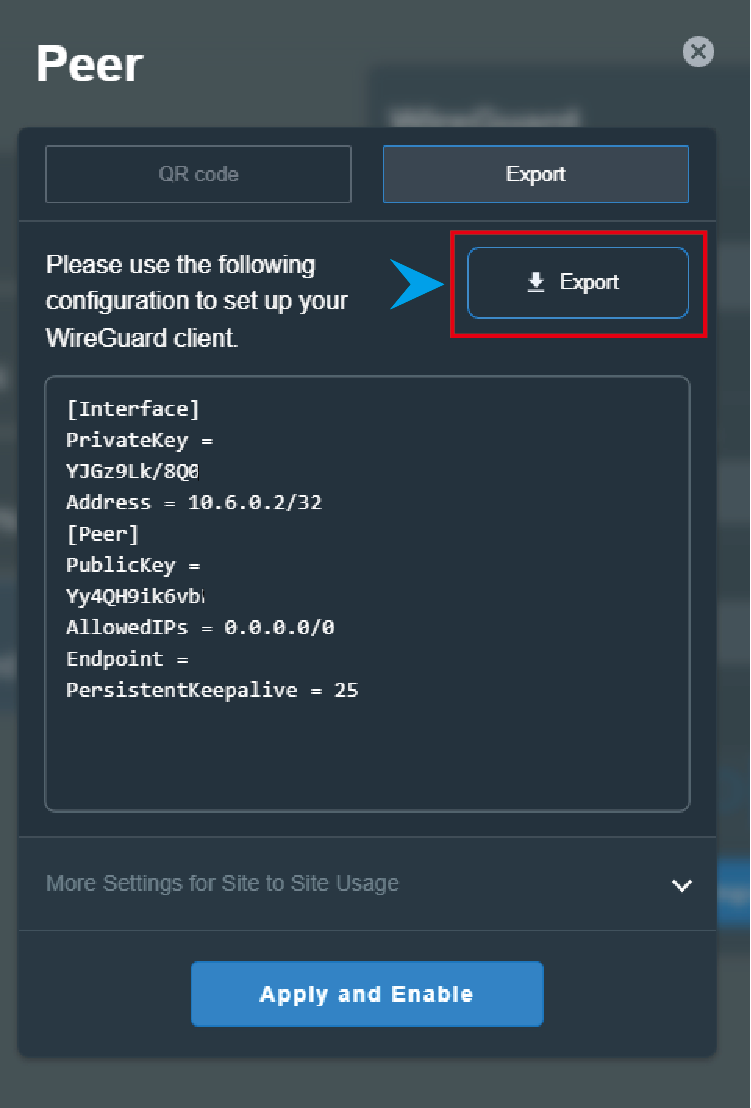
8. For other devices such as
ASUS router’s WireGuard® client
, you can export the configuration file and then import it to WireGuard® client.
Note
:
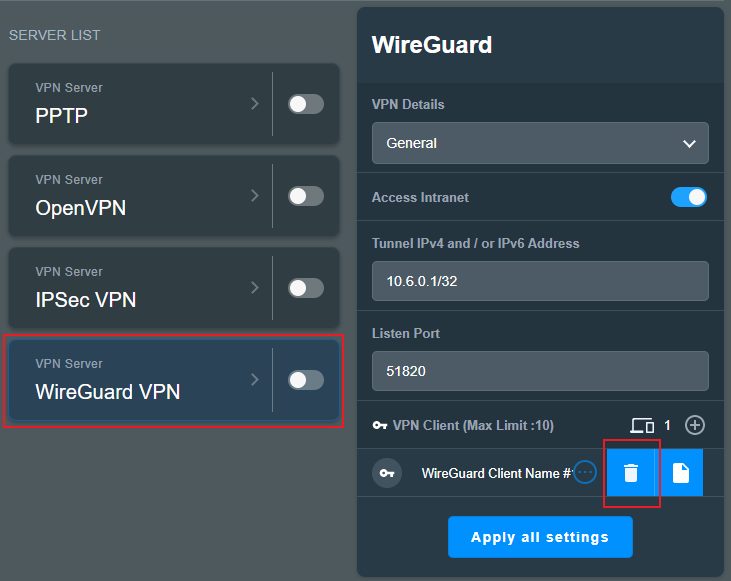
You can simply disable the WireGuard® VPN profile to disconnect the WireGuard® VPN Server or tap
 to delete the WireGuard® client details.
How to get the (Utility / Firmware)?
You can download the latest drivers, software, firmware and user manuals in the
ASUS Download Center.
If you need more information about the
ASUS Download Center
, please refer to this
link
Contact Support
Please contact with us if the above information cannot resolve your problem
Get the support
-
Above information might be partly or entirely quoted from exterior websites or sources. please refer to the information based on the source that we noted. Please directly contact or inquire the sources if there is any further question and note that ASUS is neither relevant nor responsible for its content/service
-
This information may not suitable for all the products from the same category/series. Some of the screen shots and operations could be different from the software versions.
-
ASUS provides the above information for reference only. If you have any questions about the content, please contact the above product vendor directly. Please note that ASUS is not responsible for the content or service provided by the above product vendor.
-
Brand and product names mentioned are trademarks of their respective companies.