Environment variables are key-value pairs that can be used to alter the behavior of an application. The variables are part of the environment in which a process runs. The environment is injected during the runtime of the application. Environment variables can be set at the system level or they can be defined by the end-user.
Environment variables are commonly used for configuration purposes. It is possible to set different configuration values for development, testing and production environment. It is possible to use env vars as feature flags or to specify secrets and keys and keep them separate from the application codebase.
For example, an app could take advantage of the
LOG_LEVEL=trace
environment variable to set the log level using the Logging library (
Logging for server-side Swift apps
) in Swift. By using an env variable developers can get more detailed logs for debugging purposes and less verbose logs for production without changing the source code of the application itself.
In Swift, it is possible to access environment variables using the
ProcessInfo
class. The
ProcessInfo
class is part of the Foundation framework.
Here’s a quick example how to get the value of the
LOG_LEVEL
variable:
import Foundation
environment.swift
The process info’s environment is represented a
[String: String]
dictionary. When requesting a specific key, the value is going to be an optional
String
type.
The output of this script is
trace
, if the
LOG_LEVEL
is not provided explicitly.
There are several methods for configuring environment variables, and the approach you take depends on the specific tools you’re working with.
Here are some typical scenarios for setting up custom environment variables.
List the desired environment variables before the command when running a Swift package using a terminal window. Key-value pairs should be listed using the
key=value
format, separated by a single space character.
Here’s how to define an explicit log level by using the
swift run
command:
LOG_LEVEL=debug swift run
// output: "debug"
The command above makes the
LOG_LEVEL
env variable set to
trace
for the
swift run
process. Traditionally environment variables are uppercased.
The export command extends the availability of an environment variable throughout the shell’s entire lifecycle. Here’s how to use it:
echo $LOG_LEVEL // output: ""
export LOG_LEVEL=info
echo $LOG_LEVEL // output: "info"
swift run
// output: "info"
The
echo
command is used to display variables in a shell script. Use the $ prefix and the name of the variable to access the value of it.
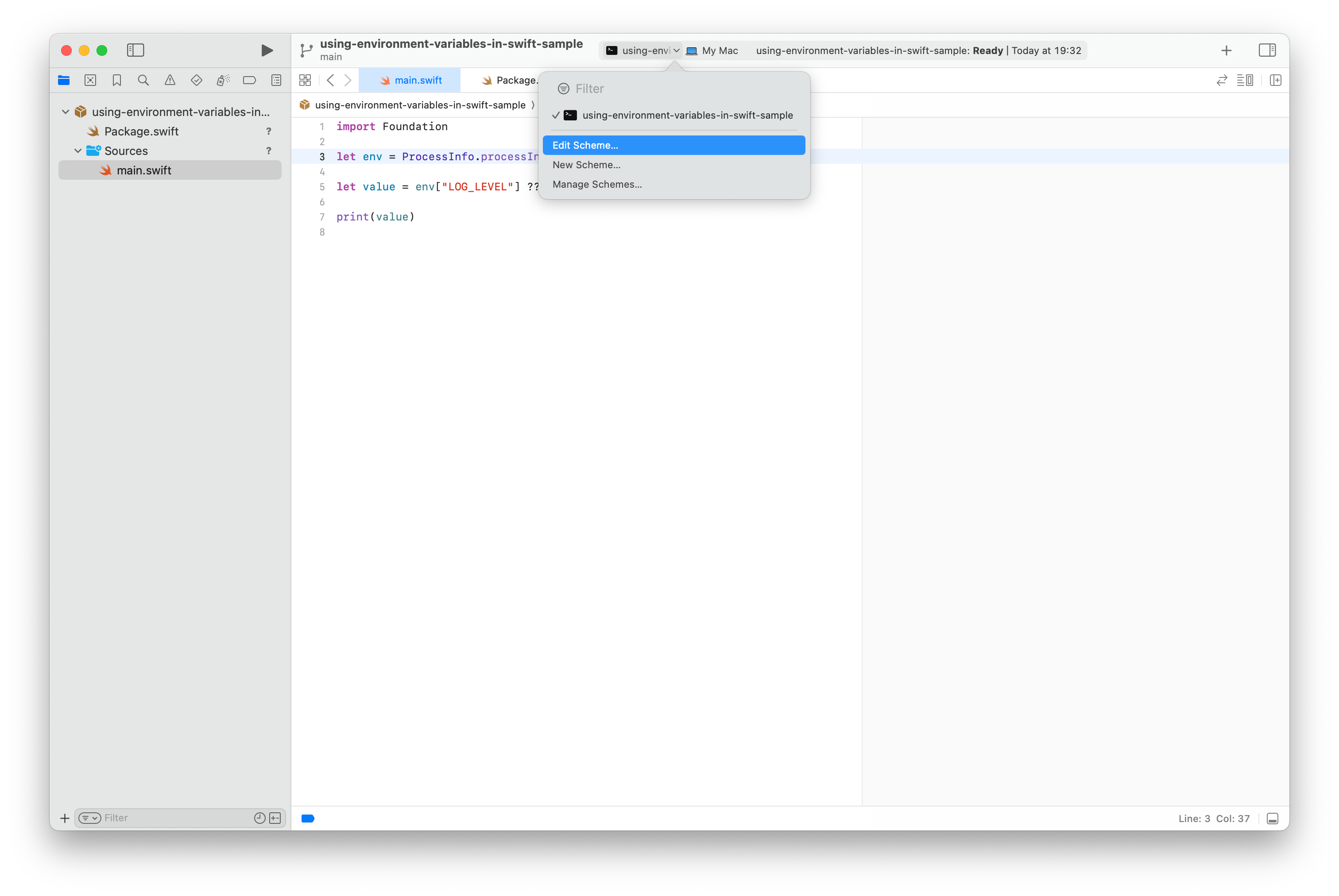
In Xcode, you can configure environment variables within the Scheme settings. The interface permits enabling or disabling specific key-value pairs for a particular run.
Here’s how to reach the settings:
Alternatively, click on the Scheme name and select the “Edit Scheme…” menu item:
Inside the popup window:
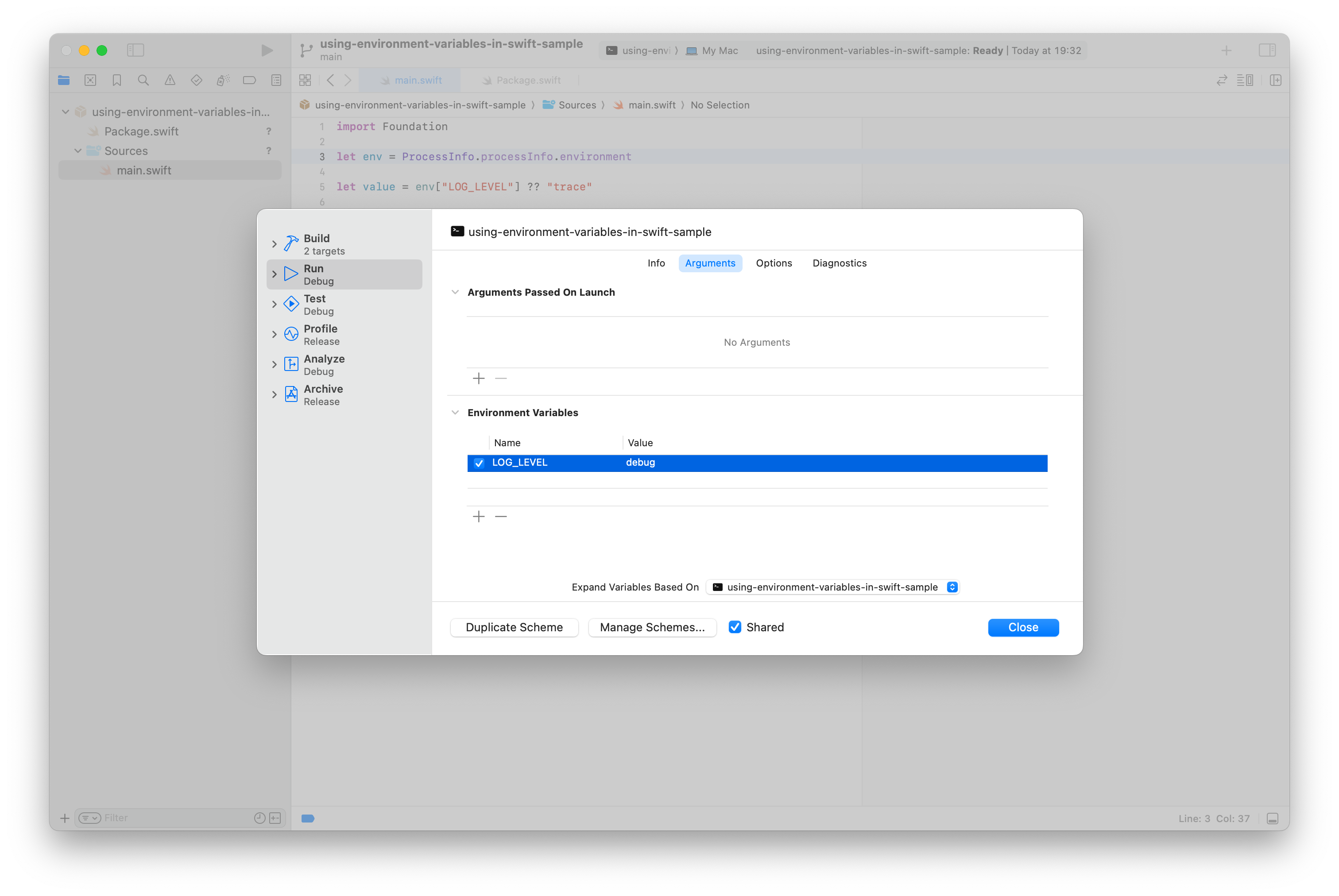
Finally, add a new entry into the “Environment Variables” section.
Click “Close” to get back to the project and press the “Play” icon to run the app.
It is possible to develop Swift projects with VSCode (see
Developing with Swift in Visual Studio Code
) using the
official Swift extension
.
In order to set environment variables in the editor, open the
.vscode/launch.json
file in your workspace or select the “Debug” > “Open Configurations” menu item.
Inside the launch configuration file simply add to a new
env
property, if it’s not present, with the desired key-value pairs:
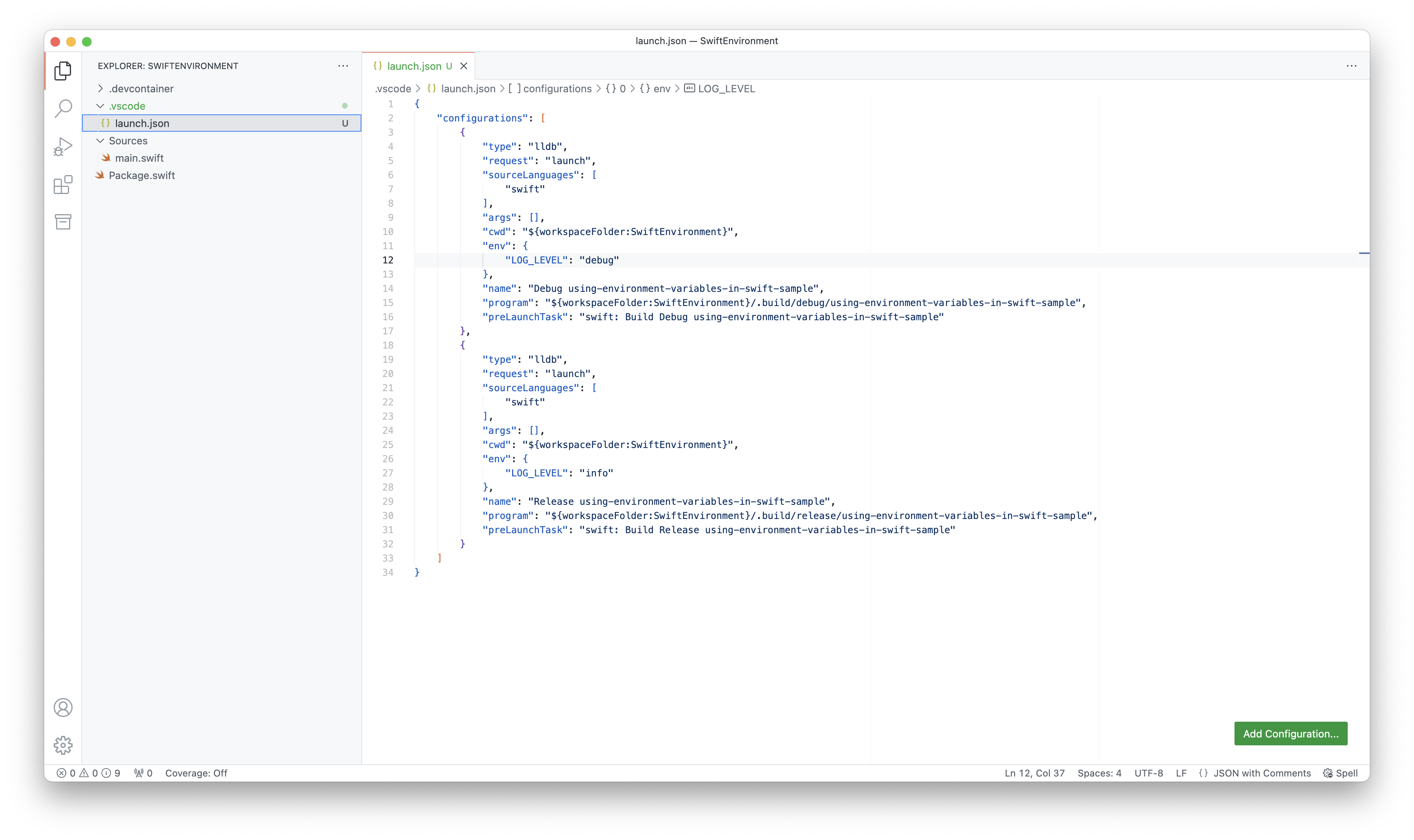
Save the launch config and run the project using the “Play” icon inside the “Run and Debug” panel or using the “Run” > “Start Debugging” menu item.
A
.env
file is a text file commonly used to store environment variables for a project. It contains key-value pairs in the form of
KEY=VALUE
, where each line represents a different variable. Developers use libraries or tools to load the variables from the
.env
file into the application’s environment. This allows the application to access these variables as if they were set directly in the system’s environment.
NOTE: The
.env
files should be excluded from git using
.gitignore
.
The
.env
file provides a flexible and convenient way to manage environment-specific configuration settings in a project while keeping sensitive information secure and separate from the codebase.
Various open-source Swift libraries exist for server-side application developers, providing functionality to parse dotenv files. For instance:
Most of the modern web frameworks, have excellent support for loading dotenv files. Both
Vapor
and
Hummingbird
have a built-in solution to load and parse environment variables using these files.
Vapor’s
Environment API
enables dynamic configuration of the application:
import Vapor
// configures your application
public func configure(_ app: Application) async throws {
    // 1.
    var logger = Logger(label: "vapor-logger")
    logger.logLevel = .trace
    // 2.
    let logLevel = Environment.get("LOG_LEVEL")
    // 3.
    if let logLevel, let logLevel = Logger.Level(rawValue: logLevel) {
        // 4.
        logger.logLevel = logLevel
    try routes(app)
}
-
Set up a new
Logger
instance, set the default log level to
.trace
-
Get the the raw log level as an optional String using the Environment
-
Cast the log level to a
Logger.Level
enum, if it’s a valid input
-
Set the log level based on the environment
Vapor will look for dotenv files in the current working directory. If you’re using Xcode, make sure to set the working directory by editing the scheme.
In Hummingbird, it is possible to use the shared environment or load dotenv files using the static
dotEnv()
method on the
HBEnvironment
struct:
import Hummingbird
import Logging
let env = ProcessInfo.processInfo.environment
let value = env["LOG_LEVEL"] ?? "trace"
print(value)
func buildApplication(
    configuration: ApplicationConfiguration
) async throws -> some ApplicationProtocol {
    var logger = Logger(label: "hummingbird-logger")
    logger.logLevel = .trace
    let env = Environment()
    // let env = try await Environment.dotEnv()
    let logLevel = env.get("LOG_LEVEL")
    if let logLevel, let logLevel = Logger.Level(rawValue: logLevel) {
        logger.logLevel = logLevel
    let router = Router()
    router.get("/") { _, _ in
        "Hello"
    let app = Application(
        router: router,
        configuration: configuration,
        logger: logger
    return app
}
environment.swift
:
4
If you run the project from Xcode, make sure you set a custom working directory, otherwise the framework won’t be able to locate your dotenv file.
Environment variables are crucial for modifying application behavior without code changes, offering flexibility across environments. They’re commonly used for feature flags, secrets, and other configuration purposes. In our next article we will discover how to store secrets and API credentials in a secure way.


