在使用富文本编辑器时,通常 word 整体粘贴时,图片总是无法正常显示,图片地址会是 src=”//0”的情况,这主要时因为,我们整体粘贴时,实际上我我们粘贴过去的是一片 word 的 dom 字符串,其中编辑器会为我们过滤其他无用标签,保留了主要部分。由于粘贴时候 word 文档中图片部分实际上引用的是本地地址,由于浏览器和 js 限制无法读取或者操作本地文件,因此无法正常显示。如果是网络上复制粘贴的文档则可以正常显示。

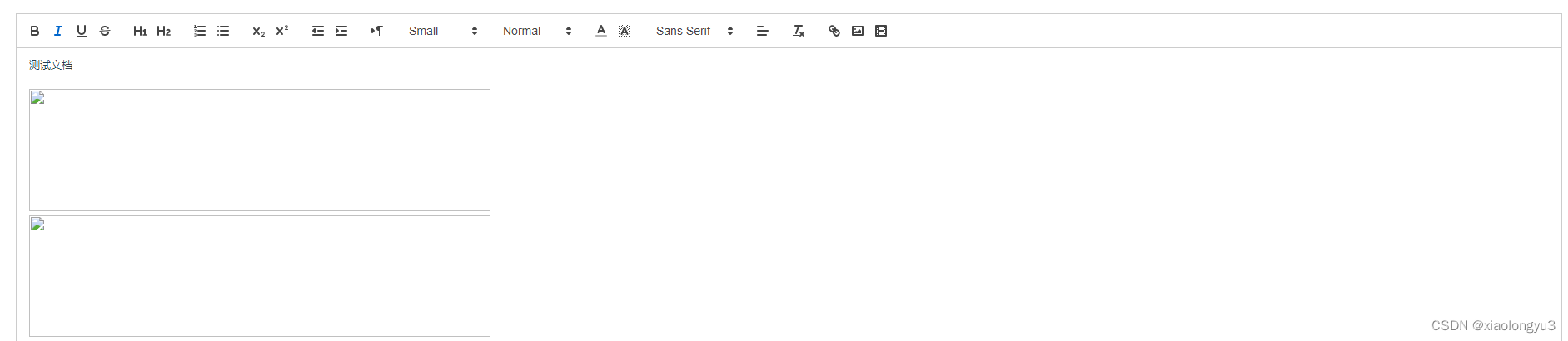
一下是从 word 直接粘贴过来的效果
在这里插入图片描述
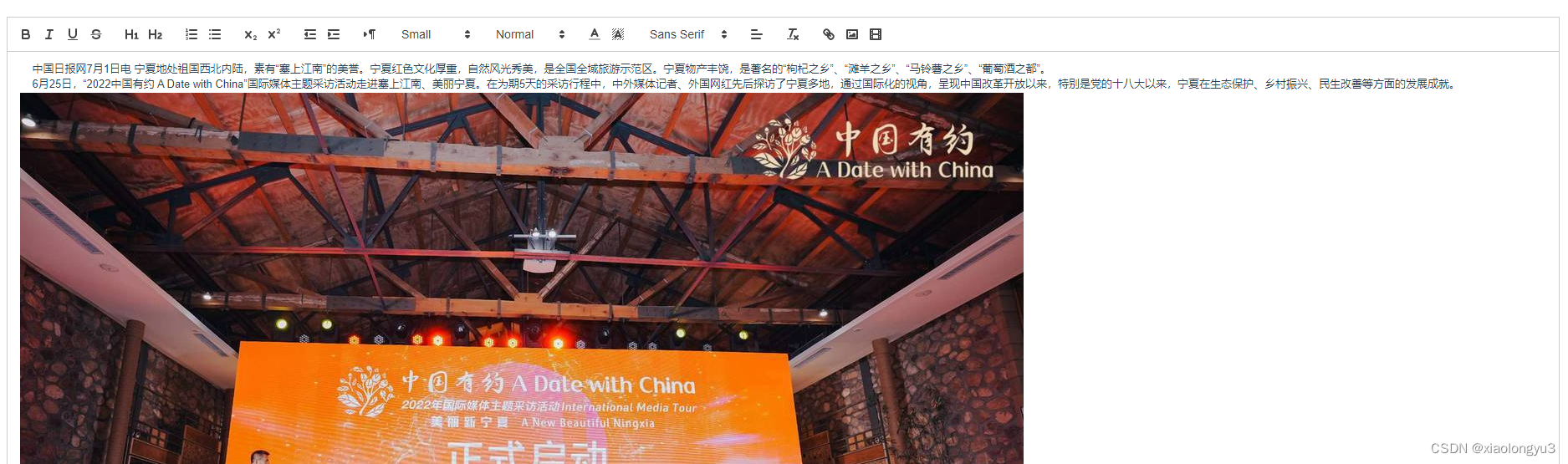
一下是从网络上粘贴过来的效果
在这里插入图片描述

粘贴事件

通常要解决从 word 中复制粘贴到富文本编辑器中,都离不开这个 paste 事件,我们简单分析一下这个事件。
粘贴事件提供了一个 clipboardData 的属性,如果该属性有 items 属性,那么就可以查看 items 中是否有图片类型的数据了。
clipboardData 的属性介绍:

dropEffect String 默认是 none effectAllowed String 粘贴操作为空 List items DataTransferItemList 剪切板中的各项数据 types Array 剪切板中的数据类型
  • items 是一个 DataTransferItemList(浏览器基于 file 对象实现的方法,所以能够转换成 file 对象)对象,里面都是 DataTransferItem 类型的数据了。
  • items 的 DataTransferItem 有两个属性 kind 和 type。
    kind 一般为 string 或者 file
    type 具体的数据类型,例如具体是哪种类型字符串或者哪种类型的文件,即 MIME-Type
    方法
  • getAsFile 空 如果 kind 是 file,可以用该方法获取到文件
  • getAsString 回调函数 如果 kind 是 string,可以用该方法获取到字符串,字符串需要用回调函数得到,回调函数的第一个参数就是剪切板中的字符串
  • 通常我们通过以上提供的属性就能够实现不论是从何处粘贴的内容,从这里我们也可以看到其冲粘贴的内容,这里简单实现一个单张图片粘贴的例子。

    单张图片粘贴

    let quill = this.$refs.myQuillEditor.quill;
    quill.root.addEventListener(
    "paste",
    (evt) => {
    // 粘贴事件
    if (
    evt.clipboardData &&
    evt.clipboardData.files &&
    evt.clipboardData.files.length
    ) {
    evt.preventDefault();
    [].forEach.call(evt.clipboardData.files, (file) => {
    if (!file.type.match(/^image\/(gif|jpe?g|a?png|bmp)/i)) {
    return;
    }
    console.log('单个图片粘贴', file);
    // 转base64格式
    const reader = new FileReader()
    reader.readAsDataURL(file)
    reader.onload = (e) => {
    // 插入图片
    quill.insertEmbed(
    quill.getSelection().index,
    "image",
    reader.result
    )
    }
    reader.onerror = (error) =>reject(error)
    // obsUpload(file, this.$refs.myQuillEditor);
    });
    }

    复制内容整体粘贴

    复制内容整体粘贴,我们通过上述的方法同样可以拿到其中内容。

    let length = evt.clipboardData.items.length;
    for (let i = 0; i < length; i++) {
    var item = evt.clipboardData.items[i];
    if (item.kind === "string") {
    item.getAsString(function (str) {
    // str 是获取到的字符串
    console.log(str);
    });
    } else if (item.kind === "file") {
    var pasteFile = item.getAsFile();
    console.log(pasteFile);
    }
    }

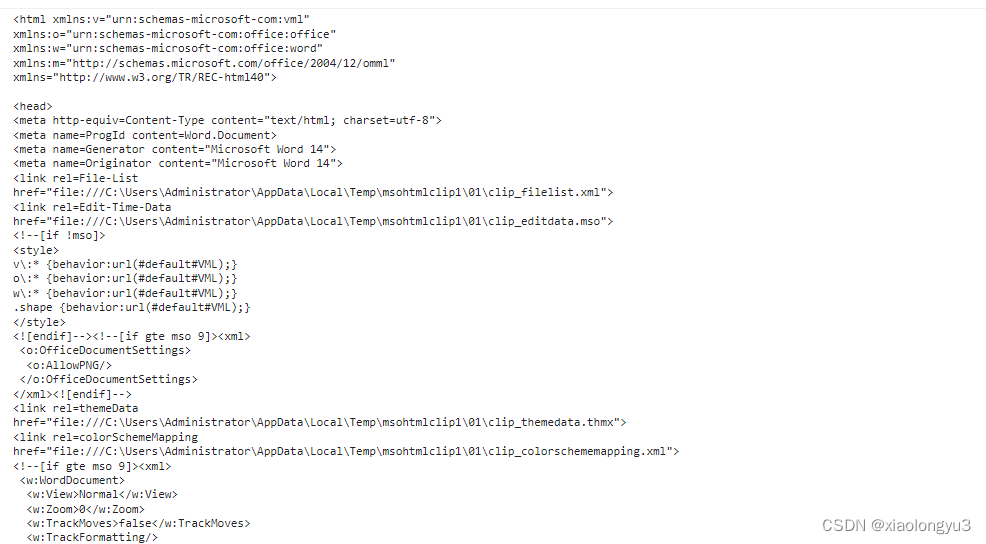
    整体粘贴过来,kind 为 string,实际上我们拿到的是一个 html 文档。
    在这里插入图片描述
    整体粘贴过来,kind 为 file,实际上我们拿到的是一个 file 文件对象。
    在这里插入图片描述
    这里实际上和第一部粘贴单张图片处理方式一样。

    整体粘贴如何实现从剪切板中提取出图片

    上述内容仅仅是作为了解内容,知道基本原理,下面这里才是重点。如果上面能解决你的单张图片粘贴问题,那么接下来才是实现整体粘贴提取图片的关键。
    我们来看看 clipboardData 提供的其他几个方法。

  • clearData(sDataFormat) 删除剪贴板中指定格式的数据。
  • getData(sDataFormat) 从剪贴板获取指定格式的数据。
  • setData(sDataFormat, sData) 给剪贴板赋予指定格式的数据。返回 true 表示操作成功。
  • 这里我们重点讨论 getData 这个方法,其他方法请自行实践。
    getData 这个方法是 clipboardData 提供给我们快速从剪切板中提取内容的方法。
    其中常用参数:

  • text/html 获取 html 内容
  • text/plain 获取文本内容
  • text/rtf 获取富媒体内容 (什么是 rtf 请自行查询资料,这里面就含有我们需要的图片信息)
  • 我们需要结合 text/html 和 text/rtf 两种两种方法实现,对粘贴内容中图片的提取。
    通过 text/html 我们提取到图片之后,我们发现图片地址都是 file:/// 开始的本地文件,js 无法完成对本地文件的处理,无法做 base64 处理。浏览器会给出警告。
    在这里插入图片描述
    接下来我们需要,从 html 文档中提取出是 file 格式的本地文件的 img, 然后讲这些图片替换成 loading 图片。
    然后就是如何把这些图片转换成对应的图片。
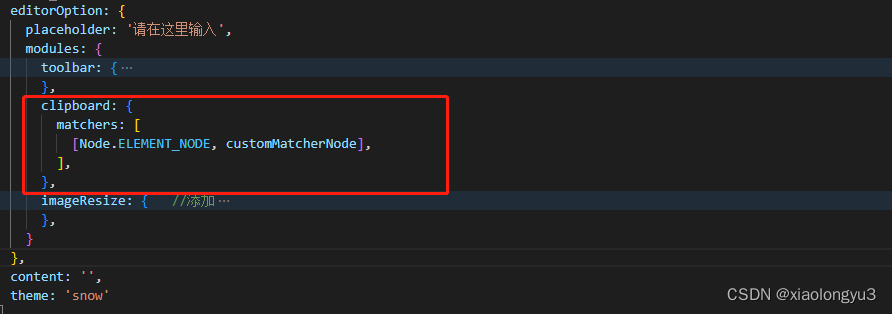
    在 QuillEditor 中提供一个 clipboard 配置项,我们通过这个配置项实现将图片替换成 loading 图片。
    在这里插入图片描述

    // 自定义粘贴内容过滤方法
    function customMatcherNode(node, delta) {
    if (delta.ops && delta.ops.length > 0) {
    delta.ops = delta.ops.map((item) => {
    if (item.insert) {
    if (item.insert.image) {
    // 判断是否是网络地址
    if (/file:\/\//.test(item.insert.image)) {
    item.insert.image =
    "https://img.zcool.cn/community/0196fa582abab6a84a0d304f899eaf.gif";
    }
    }
    return item;
    }
    });
    }
    return delta;
    }

    通过以上方法,我们实现讲了整体粘贴过来的内容换成 loading 图片。
    接下来,我们要讲对应的 loading 图片,替换成对应的真实图片。
    这些图片的对应的内容就保存在 getData('text/rtf') 中,这里面是一种特殊 hex 格式的内容。
    我们需要对其进行转换和提取。才能拿到对应的 base64 图片。

    从 rtf 中提取图片信息

    // rtf中提取图片信息
    function extractImageDataFromRtf(rtfData) {
    if (!rtfData) {
    return [];
    }
    const regexPictureHeader =
    /{\\pict[\s\S]+?({\\\*\\blipuid\s?[\da-fA-F]+)[\s}]*/;
    const regexPicture = new RegExp(
    "(?:(" + regexPictureHeader.source + "))([\\da-fA-F\\s]+)\\}",
    "g"
    );
    const images = rtfData.match(regexPicture);
    const result = [];

    if (images) {
    for (const image of images) {
    let imageType = false;

    if (image.includes("\\pngblip")) {
    imageType = "image/png";
    } else if (image.includes("\\jpegblip")) {
    imageType = "image/jpeg";
    }

    if (imageType) {
    result.push({
    hex: image
    .replace(regexPictureHeader, "")
    .replace(/[^\da-fA-F]/g, ""),
    type: imageType,
    });
    }
    }
    }
    return result;
    }

    利用正则从 rtf 内容中提取到图片的核心信息,得到数组。其中数组中保存的信息有

    {
    "type": "", //图片类型
    "hex": "" // hex字符串
    }

    将 hex 字符串转化为 base64 图片信息

    // 讲hex格式转化为base64
    function convertHexToBase64(hexString) {
    return btoa(
    hexString
    .match(/\w{2}/g)
    .map((char) => {
    return String.fromCharCode(parseInt(char, 16));
    })
    .join("")
    );
    }

    到这里核心的方法提取 rtf 内容到图片信息就处理完了。
    详细代码:

    console.log("批量粘贴");
    // const pastDom = evt.clipboardData.getData('text/html');
    const rtf = evt.clipboardData.getData("text/rtf");
    const hexStrings = extractImageDataFromRtf(rtf);
    // 获取base64图片数据
    const base64Images = hexStrings.map((hexObj) => {
    return convertHexToBase64(hexObj.hex);
    });
    // 粘贴后处理粘贴内容
    setTimeout(() => {
    const editorDom = this.$refs.myQuillEditor.quill.root;
    const editorImgs = editorDom.querySelectorAll(
    'img[src*="0196fa582abab6a84a0d304f899eaf.gif"]'
    );
    editorImgs.forEach((item, index) => {
    item.src = `data:${hexStrings[index].type};base64,${base64Images[index]}`;
    });
    }, 200);

    利用查找 quillEditor 编辑器中 loading 图片,然后遍历替换为 base64 图片格式。
    根据上述方法,大家可以自行根据实际情况在不同编辑器下修改代码,进一步完善上传到云存储也可调整替换图片的 src 的部分。异步后拿到路径之后修改完善。

    转载

    富文本编辑器 word 整体粘贴实现图片自动展示(一) 缺失模块。
    1、请确保node版本大于6.2
    2、在博客根目录(注意不是yilia-plus根目录)执行以下命令:
    npm i hexo-generator-json-content --save

    3、在根目录_config.yml里添加配置: jsonContent: meta: false pages: false posts: title: true date: true path: true text: false raw: false content: false slug: false updated: false comments: false link: false permalink: false excerpt: false categories: false tags: true